AppBlock not working in 2026? If the app suddenly stops blocking websites or apps, schedules no longer activate correctly, or content remains blocked when it should not, the problem is often related to permissions, system settings, background restrictions or a temporary synchronization issue.
The good news is that most AppBlock errors can be investigated without immediately reinstalling everything. Start with the simplest fixes, then move progressively toward permissions, updates and device-specific settings.
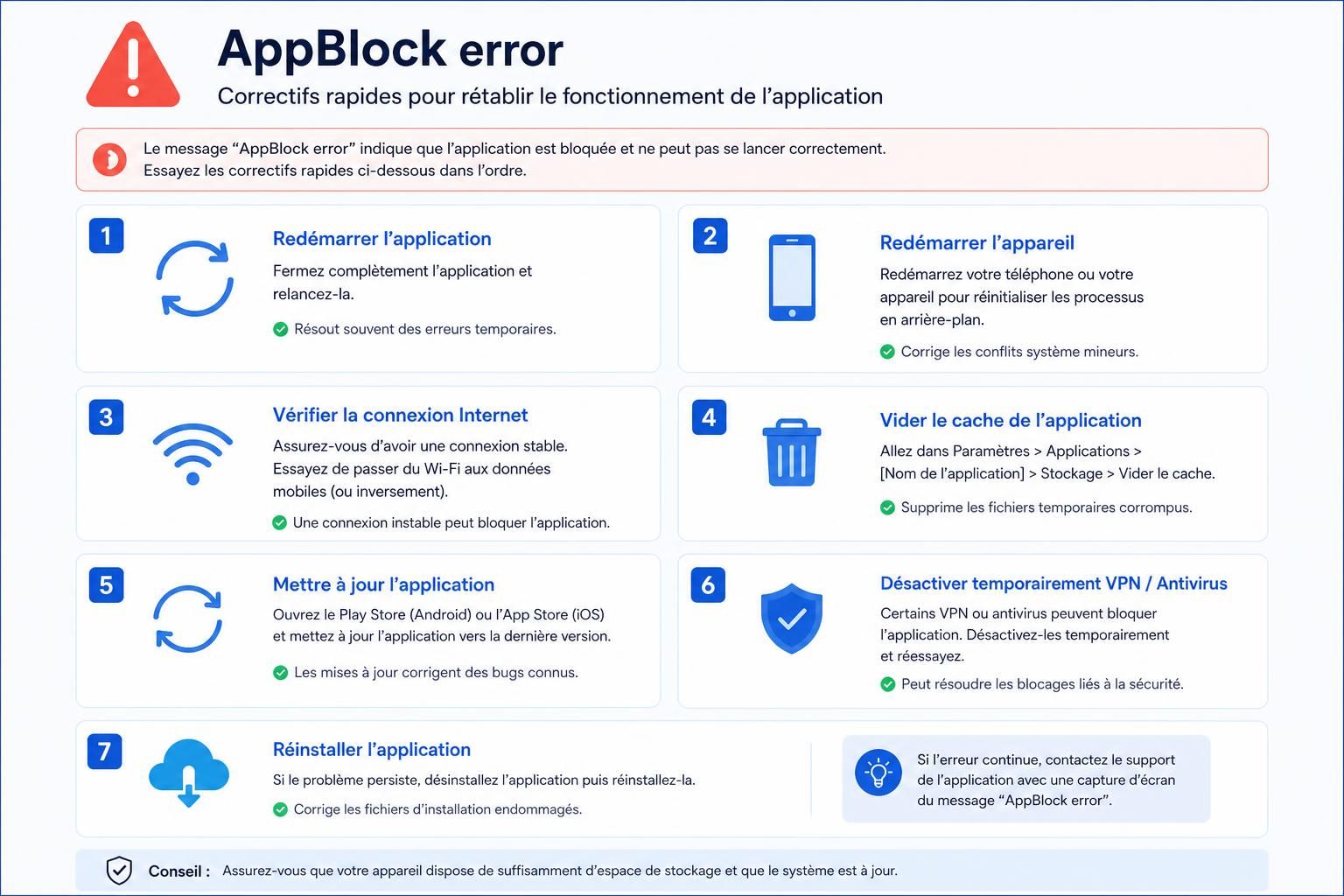
This troubleshooting guide explains what to do when AppBlock is not working on iPhone or Android, including how to refresh blocking, check Screen Time permissions, fix persistent blocks and identify problems caused by system restrictions.
In short:
- Refresh AppBlock first: a blocking refresh can resolve temporary synchronization problems.
- Check permissions: AppBlock needs the appropriate system permissions to enforce restrictions correctly.
- Update the app: using the latest AppBlock version can resolve compatibility issues and known bugs.
- Restart your device: this can clear temporary processes and help system settings reload correctly.
- Check Android battery restrictions: aggressive background optimization can interfere with blocking apps.
- Use official support: if the problem continues, document the issue and contact AppBlock support.
Table of Contents
AppBlock not working? Refresh blocking first
If AppBlock suddenly stops blocking apps or websites as expected, begin with the simplest troubleshooting step: refresh the blocking configuration.
A temporary synchronization problem can sometimes occur between AppBlock and the system features it relies on. Refreshing the blocking state gives the app an opportunity to reload its current configuration without forcing you to recreate your schedules or block lists.
Open AppBlock and look for the refresh option in the relevant blocking section. The exact interface can change between app versions, so if the controls on your device look different, follow the instructions provided by the current version of AppBlock.
After refreshing, test one of your active restrictions. If blocking works again, the issue was probably temporary and no deeper troubleshooting may be necessary.
If AppBlock still does not work, move to the permissions check below rather than repeatedly changing your schedules.
Check AppBlock permissions on iPhone
Permissions are one of the first things to investigate when AppBlock is not blocking apps on iPhone.
Apps designed to limit access to other apps and websites depend on system-level features provided by iOS. If the necessary authorization is missing, revoked or no longer working correctly, your schedules may appear active even though the expected restrictions are not being enforced.
Review the permissions and settings AppBlock currently requests on your device. Pay particular attention to Screen Time-related access and any additional permissions required by features you actively use.
If you use location-based blocking, for example, verify that the relevant location permission has not been disabled.
Check these points:
- Confirm that the permissions requested by AppBlock are still enabled.
- Check Screen Time-related access if blocking has stopped working.
- Check location access if you use location-based conditions.
- Make sure both iOS and AppBlock are up to date.
- Restart the iPhone after making significant permission changes.
Do not assume that every AppBlock failure is an application bug. A missing permission or changed operating-system setting can produce very similar symptoms.
For current instructions specific to iPhone, consult AppBlock’s official AppBlock not working on iPhone troubleshooting guide. Because iOS and AppBlock can change over time, the developer’s documentation should take priority over outdated third-party tutorials.
Update AppBlock and restart your device
If permissions look correct but AppBlock still does not work, check whether an update is available.
Operating systems evolve continuously, and applications that depend on system-level functionality may need updates to remain compatible with those changes. App updates can also contain ordinary bug fixes unrelated to the operating system itself.
After updating AppBlock, restart your phone before testing the blocking configuration again.
A restart is not a magic fix, but it is useful for eliminating temporary software states and forcing processes to start again cleanly.
A practical troubleshooting sequence is:
- Check for an AppBlock update.
- Install any relevant operating-system updates when appropriate.
- Restart your device.
- Open AppBlock and verify its permissions.
- Refresh blocking and test an active schedule.
This sequence is preferable to immediately deleting the app because reinstalling software can introduce additional setup work without identifying the original cause.
How to fix AppBlock errors on Android
Android troubleshooting can differ significantly from iPhone troubleshooting because device manufacturers implement battery management and background-app restrictions differently.
If AppBlock is not working on Android, investigate whether the operating system is preventing the app from operating correctly in the background.
Battery optimization is particularly worth checking. Some Android devices aggressively limit background activity to extend battery life, which can interfere with apps that need to respond to schedules or monitor app usage.
Depending on your phone, check:
- Battery optimization settings for AppBlock.
- Background activity restrictions.
- Permissions required by the features you use.
- Whether AppBlock is running the latest available version.
- Any manufacturer-specific battery or app-management settings.
The exact menu names vary between Samsung, Google Pixel, Xiaomi and other Android devices, so avoid following device-specific instructions unless they match your phone and Android version.
What to do if apps remain blocked after a schedule ends
Another frustrating AppBlock problem occurs when an app or website remains inaccessible even though the relevant schedule appears to be inactive.
First, verify that another active schedule, Quick Block or blocking rule is not responsible. If no active restriction explains the behavior, refresh the blocking configuration and restart the device.
AppBlock also provides dedicated guidance for cases where apps remain blocked even when schedules are inactive.
Following the developer’s current troubleshooting procedure is preferable to randomly deleting schedules, permissions or application data, especially if you have a complex AppBlock configuration.
Common AppBlock problems and quick fixes
| Problem | Possible Cause | What to Try |
|---|---|---|
| AppBlock does not block an app | Permission or synchronization issue | Check permissions and refresh blocking |
| Apps remain blocked after a schedule ends | Another rule may still be active or blocking may need refreshing | Check all active restrictions, refresh and restart |
| Blocking stops after an update | Permissions or settings may need to be checked again | Verify permissions and update AppBlock |
| AppBlock is unreliable on Android | Background or battery restrictions | Review battery optimization and background activity |
| Web blocking behaves unexpectedly | Browser, permission or configuration issue | Update the app, review settings and test again |
Should you reinstall AppBlock?
Reinstalling AppBlock can be considered when simpler troubleshooting steps fail, but it should not necessarily be your first move.
Before reinstalling, check the app’s current documentation and make sure you understand whether your schedules, settings or other configuration data will need to be restored afterward.
Try refreshing blocking, checking permissions, updating the app and restarting the device first. These steps are less disruptive and can help determine whether the problem is actually related to the installation.
When should you contact AppBlock support?
If the same error persists after you have refreshed blocking, checked permissions, updated AppBlock and restarted your device, it may be time to contact support.
Before doing so, document the problem carefully. Useful information can include your device model, operating-system version, AppBlock version, the type of blocking rule involved and the exact steps needed to reproduce the error.
A screenshot or short screen recording can also make an intermittent problem easier to understand.
For current troubleshooting resources, use the official AppBlock Help Center.
AppBlock error: the troubleshooting order to remember
When AppBlock stops working, avoid changing multiple settings at once. A methodical approach makes it easier to identify the real cause.
- Refresh blocking.
- Check AppBlock permissions.
- Update AppBlock.
- Restart your device.
- On Android, check battery and background restrictions.
- Check for overlapping schedules or blocking rules.
- Use AppBlock’s official support documentation if the problem continues.
Changing one variable at a time is the key. It helps you determine whether the problem comes from AppBlock itself, a permission, a particular schedule or an operating-system setting — and reduces the risk of creating additional problems while troubleshooting.
AppBlock not working FAQ
What should I do if AppBlock is not blocking apps?
Start by refreshing blocking. Then check AppBlock’s permissions, update the app and restart your device. Test the affected schedule again after each change.
Why is AppBlock not working on iPhone?
Permissions, changed system settings, an outdated AppBlock version or a temporary software problem can interfere with blocking. Check the permissions currently requested by AppBlock and use the developer’s latest troubleshooting instructions.
Why is AppBlock not working on Android?
Android battery optimization and background restrictions can interfere with apps that need to operate continuously. Check AppBlock’s permissions, battery settings and background activity restrictions.
Why are my apps still blocked when my AppBlock schedule is inactive?
First check whether another schedule, Quick Block or blocking rule is active. If nothing explains the restriction, refresh blocking and restart the device before following AppBlock’s dedicated troubleshooting procedure.
Should I reinstall AppBlock if it is not working?
Not immediately. Try refreshing blocking, checking permissions, updating AppBlock and restarting your device first. Reinstallation is better treated as a later troubleshooting step.
How do I report an AppBlock error?
Provide AppBlock support with your device model, operating-system version, AppBlock version and steps to reproduce the problem. Screenshots or a short screen recording can also make the issue easier to diagnose.