Need the text from a YouTube video without manually typing everything you hear? A YouTube transcript can turn spoken content into searchable, editable text in just a few steps.
Transcripts are useful for far more than subtitles. Students can turn lectures into notes, creators can repurpose videos into articles, marketers can extract quotes and key ideas, and researchers can search long videos without watching every minute.
In 2026, there are several ways to get a transcript from a YouTube video. Some videos already have a transcript available directly on YouTube, while AI transcription tools can help when captions are missing or when you need more advanced export and editing options.
Here are 6 easy ways to get the transcript of a YouTube video, from the simplest free method to AI-powered and automated workflows.
Table of Contents
6 ways to get a transcript from a YouTube video
- Use YouTube’s built-in transcript when a transcript is available for the video.
- Try an online YouTube transcript tool for additional export and processing options.
- Use a browser extension if you regularly extract transcripts while browsing YouTube.
- Use AI transcription to convert audio into text when you have permission to process the content.
- Work from a mobile device using supported browser or transcription tools.
- Build an automated workflow if you regularly process videos at scale.
1. Use YouTube’s built-in transcript
The easiest place to start is YouTube itself.
For videos where a transcript is available, YouTube can display the spoken content alongside the video. Depending on the video and interface, the transcript may include timestamps that let you jump directly to specific sections.
This is particularly convenient when you only need to copy a few quotes, search for a specific phrase or turn part of a video into notes.
On desktop, open the relevant YouTube video and look for the option to show the transcript in the video’s available controls or description area. The exact interface can change over time, but when a transcript is available, YouTube displays it alongside the video.
Because this feature is built directly into YouTube, you do not need to give a third-party transcription service access to the video just to read an existing transcript.
For more information about captions and accessibility features, you can consult YouTube’s official Help Center.
When is YouTube’s native transcript the best option?
Use the built-in transcript when you want something free, fast and simple.
Its main limitation is flexibility. If you need advanced formatting, speaker identification, bulk processing or specific file formats, a dedicated transcription tool may be more convenient.
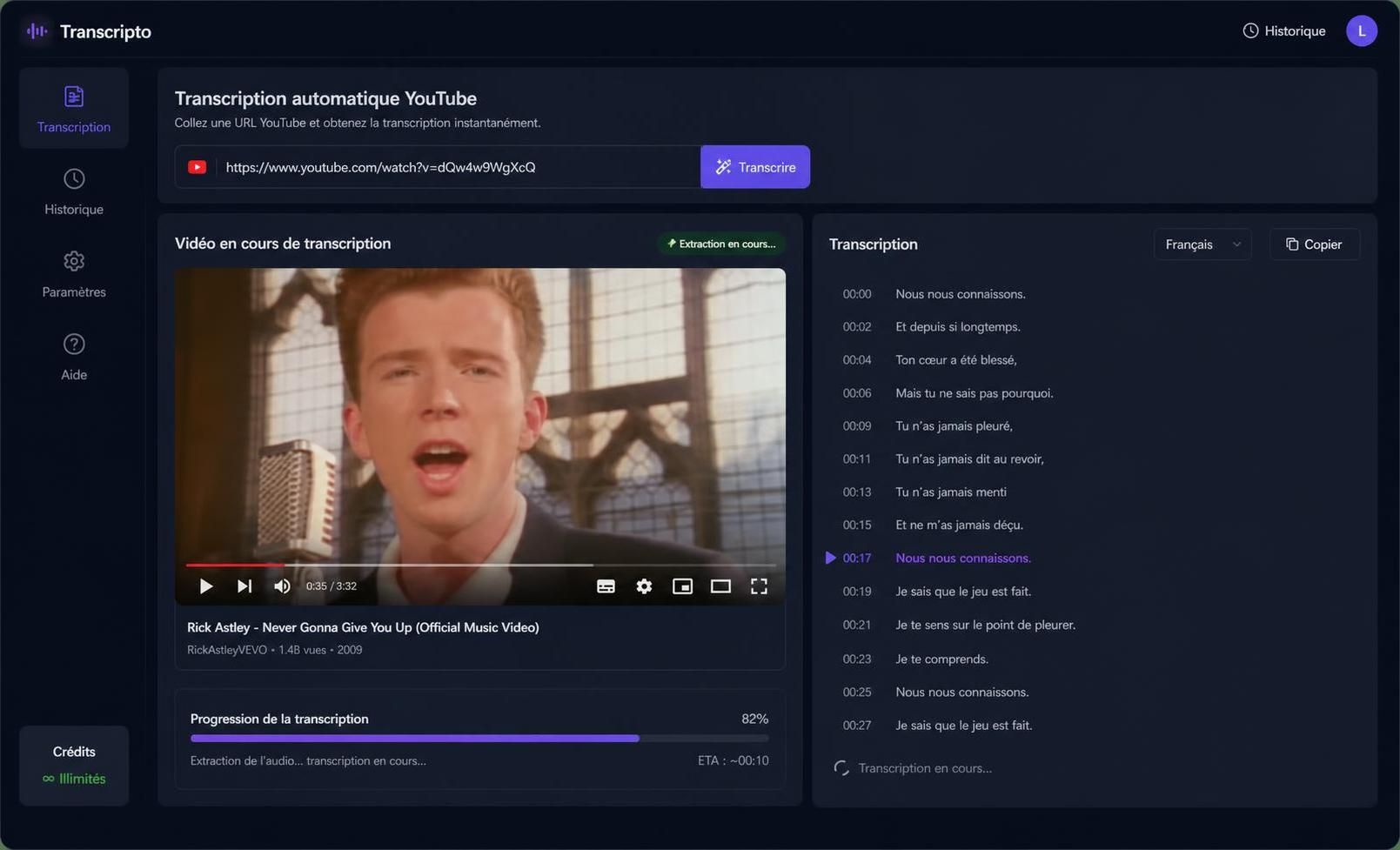
2. Use an online YouTube transcript tool
Dedicated online transcription services can provide more features than simply copying text from YouTube.
Depending on the service, you may be able to generate or process a transcript, remove timestamps, summarize the content, translate the text or export it into formats that are easier to use elsewhere.
The typical process is straightforward:
- Copy the URL of the YouTube video.
- Open the transcription service.
- Paste the video URL when the service supports URL-based processing.
- Generate or retrieve the transcript.
- Review the text and export it in an available format.
Features vary considerably between services, so check current pricing, supported languages, export formats and privacy policies before uploading or processing sensitive material.
If you regularly experiment with productivity platforms, AI utilities and other applications, our Tools & Software guides cover more software designed to simplify digital workflows.
3. Use a browser extension to get YouTube transcripts faster
If you extract transcripts frequently, switching between YouTube and a separate website can become repetitive.
A browser extension can make the process more convenient by adding transcription or summarization features directly to your browsing workflow.
Depending on the extension, available features may include:
- Displaying or extracting available transcript text
- Removing timestamps
- Copying transcripts to the clipboard
- Generating summaries
- Highlighting important sections
This approach is especially useful for students, researchers and content professionals who work with YouTube videos regularly.
However, browser extensions deserve additional scrutiny because they can request access to websites and browsing data. Check the developer, permissions, privacy policy and recent user feedback before installing one.
4. Use AI to transcribe a YouTube video without existing captions
What happens when a useful video does not have a transcript or usable captions?
This is where AI speech-to-text tools become useful.
Instead of relying on an existing YouTube transcript, speech-recognition software can analyze audio you are authorized to process and convert spoken language into written text.
Modern transcription systems can also provide punctuation, timestamps and, depending on the tool, speaker separation or other editing features.
Accuracy is never guaranteed. Background noise, music, overlapping speakers, strong accents, specialized vocabulary and poor recording quality can all produce mistakes.
For that reason, always review an AI-generated transcript before publishing or quoting it, particularly when names, numbers or technical information matter.
5. Get a YouTube transcript on mobile
Getting transcripts on a phone can be less convenient than working from a desktop browser, especially when you need to copy large amounts of text.
Your first option should still be to check whether YouTube makes a transcript available for the video in the interface you are using.
If that does not meet your needs, a mobile-compatible transcription service can be useful. Some tools allow you to process content through a browser, while others provide dedicated mobile applications.
Before sending video or audio to a third-party service, consider what is being uploaded and whether you have the right to process it, especially for private, confidential or copyrighted material.
6. Automate YouTube transcription for larger workflows
Manually copying a transcript works perfectly well for one video. It becomes inefficient when you regularly process dozens of videos.
Content teams can instead build workflows combining speech-to-text technology, storage, editing and content repurposing.
A typical workflow might look like this:
- Obtain or process the source material you are authorized to use.
- Generate a transcript with a transcription service.
- Store the transcript in a content or cloud workspace.
- Review and correct the text.
- Turn approved material into articles, captions, summaries or other content.
This is where transcription becomes part of a broader content repurposing workflow rather than an isolated task.
For example, AI video platforms can help turn long-form footage into shorter pieces of content. Our Vizard AI review looks at a tool designed around AI-assisted video clipping, captions and content repurposing.
Which YouTube transcript method should you choose?
The best method depends mainly on how often you need transcripts and what you plan to do with the text.
| Method | Main advantage | Main limitation | Best for |
|---|---|---|---|
| YouTube transcript | Free and built into YouTube | Not available or equally useful for every video | Quick, occasional use |
| Online transcript tool | Additional processing and export options | Features and pricing vary | Creators and regular users |
| Browser extension | Convenient browser workflow | Requires careful permission review | Frequent transcript extraction |
| AI speech-to-text | Can generate text from authorized audio | Transcripts can contain errors | Videos without usable captions |
| Mobile solution | Useful away from a computer | Editing can be less convenient | Mobile users |
| Automated workflow | Scales to larger content operations | Requires setup and quality control | Teams and businesses |
How to improve the accuracy of a YouTube transcript
Automatic transcription is useful, but it should not automatically be treated as a perfect record of what was said.
After generating a transcript, review:
- Names and proper nouns, which speech recognition can easily misinterpret.
- Numbers and dates, especially when accuracy matters.
- Technical terminology that may not exist in a general speech-recognition vocabulary.
- Speaker changes in interviews and podcasts.
- Punctuation when the transcript will be published as written content.
A few minutes of proofreading can make the difference between a useful draft and a transcript containing misleading errors.
What can you do with a YouTube transcript?
Once you have a clean transcript, the text can become much more useful than a simple record of the video.
- Turn educational videos into study notes.
- Search a long interview for a specific topic.
- Create subtitles or captions from content you own or are authorized to edit.
- Extract key points from webinars or presentations.
- Repurpose your own videos into blog posts, newsletters or social content.
- Improve accessibility by providing an edited text version of your own content.
The important part is to match the method to your goal. If a YouTube transcript already exists, start there. If you need more control, advanced exports or transcription from authorized audio, a dedicated AI tool may be more appropriate.
YouTube transcript FAQ
How do I get the transcript of a YouTube video?
When a transcript is available, YouTube can display it directly alongside the video. If you need more advanced export, editing or transcription features, you can use a dedicated transcription service.
How can I transcribe a YouTube video without captions?
If you are authorized to process the video’s audio, an AI speech-to-text service can generate a transcript without relying on existing YouTube captions. Always review the resulting text for recognition errors.
Is YouTube transcription free?
Viewing an available transcript directly on YouTube does not require a separate transcription subscription. Third-party services may provide free features, trials, usage limits or paid plans.
What file formats can YouTube transcripts use?
It depends on the tool. Common options can include plain text, SRT and VTT, while some services provide additional document or structured-data formats.
Can AI translate a YouTube transcript?
Yes. Many transcription and AI tools can translate transcript text into other languages. Supported languages and translation quality vary, so important translations should always be reviewed.