Google My Activity may know more about your digital habits than you realize. Searches, YouTube activity and interactions with other Google services can be associated with your Google Account depending on the settings you have enabled.
The good news is that Google gives you tools to review this information, delete past activity and control what gets saved in the future. The problem is that many users never check those settings.
In this guide, we’ll show you how to use Google My Activity in 2026, delete unwanted history, configure automatic deletion and review the privacy settings that determine what Google saves about your activity.
In short:
- Google My Activity lets you review activity associated with your Google Account across supported Google services.
- You can delete individual items, activity from a specific period or larger portions of your history.
- Activity Controls determine whether certain categories of activity are saved to your account.
- Automatic deletion can reduce how long eligible activity remains associated with your account.
- Incognito mode does not make you anonymous online. It mainly limits what is saved locally on your device and changes how certain account activity is handled.
- Reviewing these settings periodically is one of the simplest ways to better understand your Google privacy configuration.
Table of Contents
What is Google My Activity?
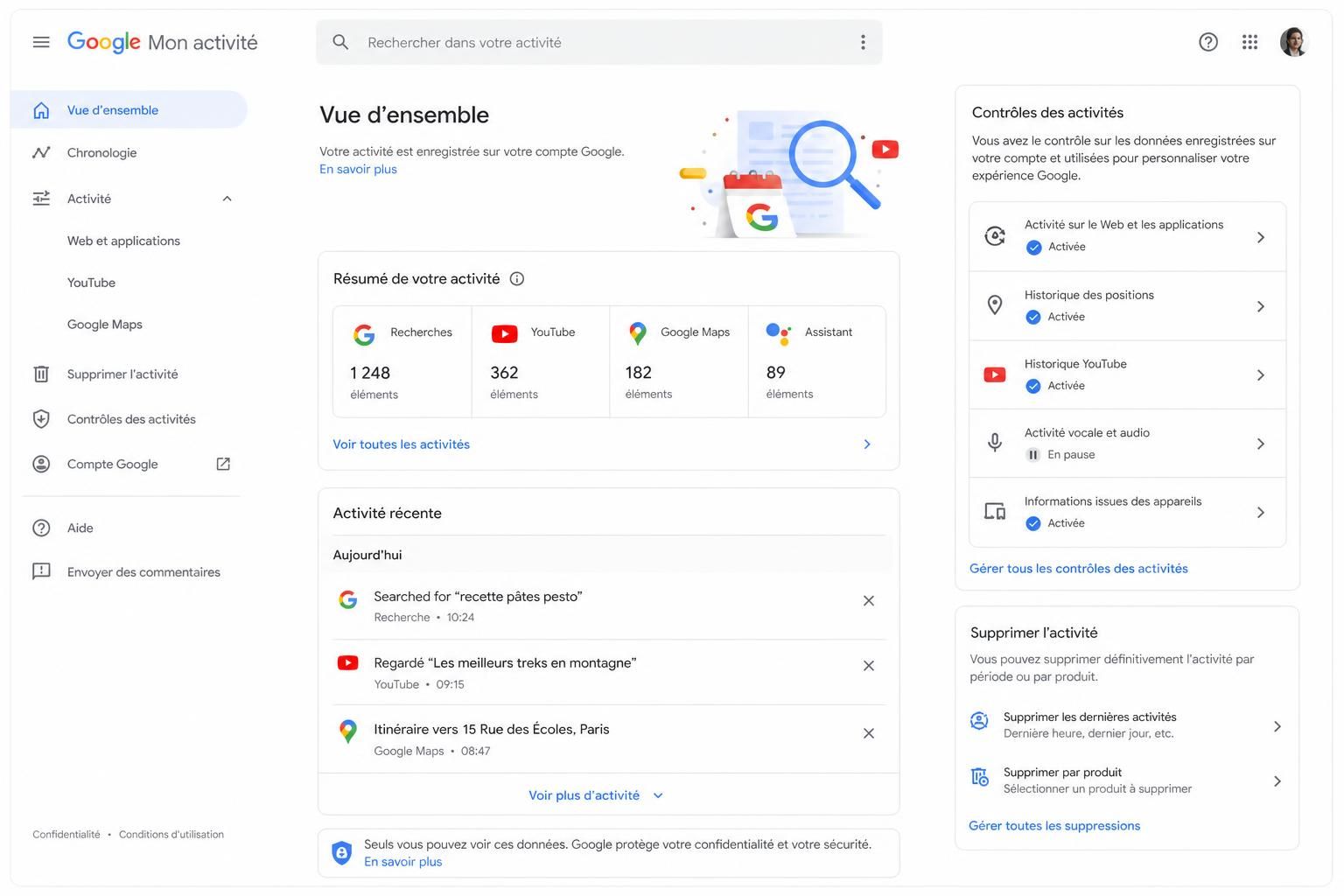
Google My Activity is a dashboard where signed-in users can review activity associated with their Google Account.
Depending on your settings and the Google services you use, this can include activity related to Google Search, YouTube and other Google products.
Instead of treating your history as an invisible background process, My Activity gives you a central place to inspect and manage eligible activity.
Entries can generally be reviewed chronologically and filtered, making it easier to locate activity from a particular period or Google product.
You can access the dashboard directly through Google My Activity. Because privacy controls can change over time, Google’s own account interface should always be your primary reference for the settings currently available.
What does Google My Activity actually save?
There is no single answer that applies identically to every user because the information associated with your account depends on the Google services you use and the activity settings you have enabled.
Three important areas to review are:
Web & App Activity
Web & App Activity can save activity from Google sites and apps to your account when the setting is enabled. Additional options may also affect what information is included.
This is one of the first settings to inspect if you want to understand why particular searches or interactions appear in My Activity.
YouTube History
YouTube History can include the videos you watch and searches you perform on YouTube, depending on your configuration.
This information can be used to improve features such as recommendations. If you prefer not to retain this history, you can review its controls separately.
Location-related data
Location information requires a little more care because Google’s location-related settings and products have evolved over time.
Rather than assuming that every place you visit appears in My Activity, review the current location and timeline settings associated with your account and devices.
How to see your Google activity history
Checking your Google activity only takes a few steps:
- Sign in to the Google Account you want to review.
- Open Google My Activity.
- Browse your activity chronologically or use the available search and filtering options.
- Select an entry if you want to see additional information associated with it.
- Delete individual items if you no longer want them retained in your account history.
This is worth doing at least once even if you do not intend to delete anything. Seeing the dashboard gives you a much clearer picture of the information associated with your account.
How to delete your Google My Activity history
You do not necessarily need to erase everything at once. Google provides controls that allow you to be more selective.
Depending on the options currently available, you can remove individual activity or delete activity across a broader period.
Delete a specific activity
If there is a particular search or activity entry you no longer want associated with your account history, locate it in My Activity and use the available delete option.
Delete activity from a period
You can also use Google’s deletion controls to remove activity across a selected time range rather than deleting entries one by one.
Delete activity by Google product
Filtering can be useful when you only want to review or remove activity associated with a particular Google service.
Before performing a large deletion, remember that removing history may also affect personalized experiences that depend on that activity.
How to stop Google from saving future activity
Deleting your history and changing what gets saved are two different actions.
If you delete existing activity but leave the corresponding activity setting enabled, new activity may continue to be saved.
To review this, open your Google Account’s Activity Controls. From there, you can inspect the categories currently available for your account and decide which ones you want enabled.
The important point is not to disable every setting automatically. Consider the trade-off between privacy and personalization.
| Setting | Why Keep It? | Why Limit It? |
|---|---|---|
| Web & App Activity | Can support more personalized Google experiences | Reduces the amount of activity retained in your account when limited |
| YouTube History | Can improve video recommendations and continuity | Limits the viewing and search history associated with your account |
| Location-related settings | Can support location-based features | May be unnecessary for users who prioritize minimizing location data |
Use auto-delete to limit how long Google keeps activity
If you want some personalization without keeping eligible account activity indefinitely, automatic deletion can provide a useful middle ground.
When an auto-delete option is available for an activity category, you can choose from the retention periods currently offered by Google.
This removes the need to remember to clean your history manually every few months.
There is no universal retention period that is best for everyone. Someone who values personalization may choose differently from someone whose priority is minimizing retained account activity.
Does Incognito mode stop Google from tracking you?
No. Incognito mode should not be confused with online anonymity.
In Chrome, Incognito primarily changes what information the browser retains on your device after the private session ends. Chrome does not save your browsing history locally in the usual way once all Incognito windows are closed.
However, websites you visit, organizations managing your network and internet service providers may still be able to observe activity. Signing into an online service can also identify you to that service.
In other words, private browsing is useful when you want to reduce local traces on a shared device, but it is not a universal privacy shield.
Use Google Privacy Checkup to review more than your history
My Activity is only one part of Google’s account privacy controls.
Google also provides a Privacy Checkup that guides you through important privacy settings associated with your account.
This is useful because privacy is not limited to deleting search history. Depending on your account and services, you may also want to review personalization, sharing settings, connected services and other account-level controls.
For authoritative and up-to-date instructions, use the official Google Account Help guide to managing activity. Google’s documentation should take priority whenever the interface or available settings change.
Google My Activity and your professional digital footprint
Privacy settings become particularly important when the same devices and Google Account are used across personal and professional activities.
Creators, freelancers and online entrepreneurs can generate a significant amount of browsing, research and platform activity simply through their work. Keeping personal and professional workflows organized can therefore make account management easier.
If you work online, you can explore our Digital & Business guides for more resources on managing an online activity. And if your work involves building a public audience, our guide explaining how to become a web influencer covers another side of managing your digital presence.
Google My Activity: 7 privacy settings worth checking in 2026
- Review My Activity: see what activity is currently associated with your account.
- Check Web & App Activity: decide whether you want this category enabled.
- Review YouTube History: determine how much viewing and search history you want to retain.
- Check location-related settings: review the options currently associated with your account and devices.
- Configure auto-delete: avoid retaining eligible activity longer than necessary for your needs.
- Run Privacy Checkup: review privacy controls beyond My Activity itself.
- Review your settings periodically: your preferences and Google’s services can change over time.
Should you delete all your Google activity?
Deleting everything is not automatically the best choice for every user.
Stored activity can support personalization and recommendations across Google services. If those features are useful to you, keeping some history while configuring automatic deletion may provide a better compromise.
If minimizing stored activity matters more than personalization, you may prefer stricter Activity Controls and shorter retention.
The most important thing is to make that choice deliberately rather than leaving years of account activity untouched simply because you never reviewed the settings.
Google My Activity FAQ
How do I see and delete my Google My Activity history?
Sign in to your Google Account and open Google My Activity. You can browse and filter eligible activity associated with your account, delete individual entries or remove activity across a broader period using Google’s deletion controls.
Can I stop Google from saving my activity?
Yes. Review Google’s Activity Controls and change whether supported categories such as Web & App Activity and YouTube History are saved to your account.
Does Incognito mode stop Google from tracking me?
No. Incognito primarily limits information Chrome stores locally after your private session. It does not make you anonymous to websites, network administrators, internet service providers or online services you sign in to.
Can Google My Activity delete history automatically?
Google provides automatic deletion options for eligible activity categories. When available, you can select from the retention periods currently offered in your account settings.
Should I delete all my Google activity?
Not necessarily. Activity can support personalized Google experiences. Your ideal configuration depends on whether you value personalization or prefer to minimize the amount of activity retained in your account.