The Microsoft Store has come a long way. In 2026, it is one of the easiest places to discover, install and update useful Windows apps without hunting through dozens of download websites.
But with so many apps available, which ones are actually worth installing?
Whether you want to improve productivity, manage files more efficiently, take better screenshots or simply make Windows more enjoyable to use, a handful of apps can genuinely change the way you use your PC.
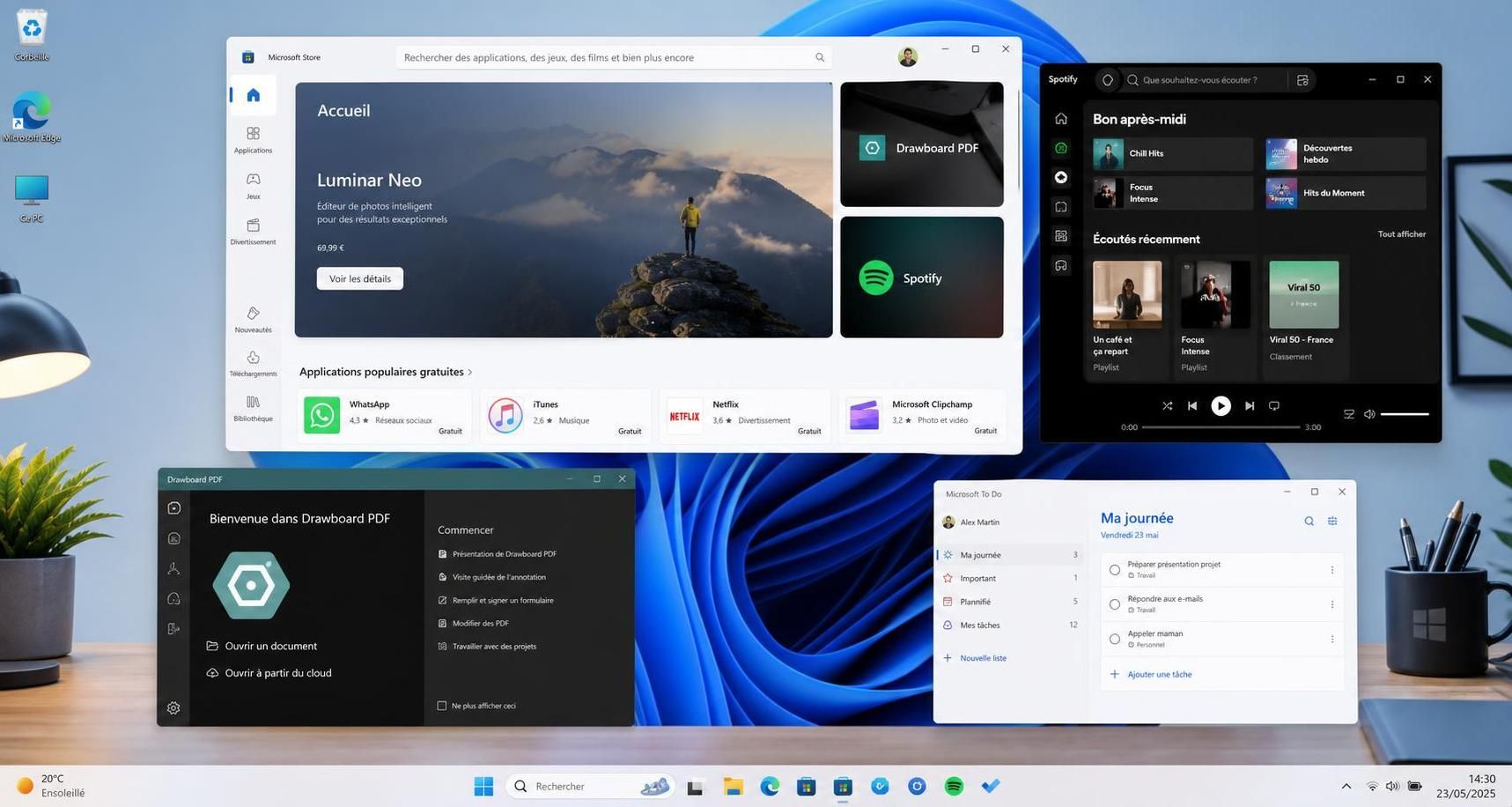
Here are 10 useful Microsoft Store apps worth installing on Windows in 2026, including several free and open-source tools.
Our 10 picks:
- Microsoft PowerToys – the ultimate Windows utility toolkit.
- Files – a modern alternative to File Explorer.
- ShareX – advanced screenshots and screen capture.
- QuickLook – preview files instantly with the spacebar.
- Microsoft To Do – simple task and reminder management.
- WhatsApp – messaging and calls directly from your PC.
- Firefox – a customizable alternative web browser.
- Lively Wallpaper – animated and interactive wallpapers.
- aText – text expansion for repetitive typing.
- Duplicate Cleaner – find unnecessary duplicate files.
Table of Contents
1. Microsoft PowerToys: the Windows app every power user should try
If you only install one utility from this list, Microsoft PowerToys deserves serious consideration.
Developed by Microsoft, PowerToys is a collection of utilities designed to add useful features and shortcuts to Windows. Instead of installing several separate applications, you get a growing toolbox in one package.
Some of its most useful features include PowerRename for bulk file renaming, FancyZones for creating custom window layouts and Always On Top for keeping an important window visible above other apps.
PowerToys also includes tools for quickly finding your mouse cursor, extracting text from parts of the screen, remapping keyboard shortcuts and much more.
For official documentation and the latest list of utilities, check Microsoft’s official PowerToys documentation.
2. Files: a modern alternative to Windows File Explorer
Windows File Explorer gets the job done, but users who spend a lot of time managing documents may want something more flexible.
Files provides a modern file-management experience with features such as tabs, dual-pane browsing and a customizable interface.
The dual-pane layout is particularly useful when moving files between folders because you can display two locations side by side instead of constantly switching between separate windows.
It is not necessarily a replacement everyone needs, but for users who regularly work with large folder structures, Files can make Windows file management considerably more pleasant.
3. ShareX: one of the best screenshot tools for Windows
Windows already includes built-in screenshot features, but ShareX takes screen capture much further.
This free and open-source application offers multiple capture modes, annotation tools, scrolling capture, screen recording and customizable workflows.
For example, you can capture a specific region of your screen, annotate it and then automatically save or process the image according to a predefined workflow.
That makes ShareX particularly useful for writers, developers, support teams and content creators who take screenshots every day.
4. QuickLook: preview files without opening them
QuickLook brings one of macOS’s most convenient ideas to Windows: instant file previews.
Select a supported file and press the spacebar to quickly preview its contents without launching the associated application.
It sounds like a minor feature until you start browsing a folder containing dozens or hundreds of documents, images or other files.
Instead of repeatedly opening and closing applications, you can rapidly inspect files until you find the one you need.
5. Microsoft To Do: keep your tasks under control
You do not necessarily need a complicated project-management platform to organize your day.
Microsoft To Do focuses on straightforward task management. You can create lists, set due dates and reminders, organize important tasks and access your lists across supported devices.
Its simplicity is arguably its biggest advantage. If your goal is simply to remember what needs to be done rather than build complex workflows, To Do is easy to integrate into a daily routine.
If you regularly test productivity apps, AI utilities or other software, you can also explore our broader collection of tools and software guides.
6. WhatsApp: messaging and calls from your Windows PC
If you already use WhatsApp on your phone, the Windows application can save you from constantly reaching for another device while working.
WhatsApp for Windows lets you access conversations, send files and use supported calling features from your computer.
After your devices have been linked, WhatsApp’s multi-device functionality means your primary phone does not need to remain continuously connected for your linked device to work normally, although periodic phone use may still be required to keep linked devices active.
For people who spend most of the working day in front of a PC, having messages available directly on Windows can make communication considerably more convenient.
7. Firefox: a strong alternative to Edge and Chrome
Microsoft Edge is deeply integrated into Windows, but there is no reason you have to use it as your main browser.
Mozilla Firefox remains a popular alternative for users who value customization, extensions and privacy-oriented features.
Firefox includes Enhanced Tracking Protection and supports a large ecosystem of extensions. Modern versions also offer features such as picture-in-picture video and built-in PDF tools.
Installing it through the Microsoft Store can also be convenient for users who prefer managing applications through the Windows ecosystem.
8. Lively Wallpaper: give your Windows desktop a new look
Not every useful app has to be about productivity.
Lively Wallpaper is a free and open-source application that lets you use animated and interactive content as your Windows wallpaper.
You can customize your desktop with videos, animated scenes and other supported content instead of using a traditional static image.
The application includes controls designed to manage resource usage, such as pausing wallpapers under certain conditions. That makes it more practical than simply running an animation continuously in the background.
9. aText: stop typing the same sentences over and over
If you repeatedly type the same email responses, addresses, signatures or standard phrases, a text-expansion utility can save a surprising amount of time.
aText lets you associate frequently used text with short abbreviations. Type the abbreviation and the application can expand it into the full text.
For example, a customer-support representative could create shortcuts for frequently used responses, while a freelancer might use them for contact information, email templates or standard project instructions.
It is a simple concept, but the time saved can add up quickly if you type repetitive content every day.
10. Duplicate Cleaner: find files wasting storage space
Duplicate photos, downloads and copied documents can gradually consume storage without you noticing.
Duplicate Cleaner is designed to identify duplicate files so you can review them and decide what should be removed.
The key word here is review. You should avoid blindly deleting everything identified by any cleaning utility. Similar or duplicate-looking files may still be needed by applications or stored intentionally in different locations.
Used carefully, however, a duplicate-file finder can help identify unnecessary copies and recover storage space.
The 10 best Microsoft Store apps at a glance
| App | Best For | Why Install It? |
|---|---|---|
| Microsoft PowerToys | Windows productivity | Adds dozens of useful Windows utilities |
| Files | File management | Modern interface, tabs and dual-pane browsing |
| ShareX | Screenshots | Advanced capture, annotation and workflows |
| QuickLook | File previews | Preview supported files with the spacebar |
| Microsoft To Do | Task management | Simple lists, reminders and synchronization |
| Communication | Messages and supported calls from your PC | |
| Firefox | Web browsing | Customizable browser with privacy features |
| Lively Wallpaper | Customization | Animated and interactive desktop wallpapers |
| aText | Text expansion | Automates frequently typed text |
| Duplicate Cleaner | Storage management | Helps locate unnecessary duplicate files |
Is it safer to download apps from the Microsoft Store?
One advantage of the Microsoft Store is convenience. Applications are available through a centralized Windows interface, and supported apps can receive updates through the Store rather than requiring you to manually search for new installers.
However, you should still apply the same basic caution you would use with any software installation.
- Check the application publisher.
- Make sure you are installing the app you intended to download.
- Review requested permissions when relevant.
- Keep Windows and your applications updated.
- Avoid unfamiliar third-party downloads that promise to bypass licensing or security mechanisms.
This last point is particularly relevant for older Windows utilities circulating online. Tools such as Windows Loader v2.2.2, for example, belong to a very different category from ordinary Microsoft Store applications and should not be confused with official Windows installation or licensing tools.
Why use the Microsoft Store instead of downloading apps manually?
Downloading software directly from a developer’s official website is still perfectly normal, and many Windows applications are distributed that way.
The Microsoft Store simply offers a more centralized experience.
You can search for applications, install them and manage Store-delivered updates from a familiar Windows interface. This can be particularly convenient when setting up a new PC.
Microsoft also maintains its own official Microsoft Apps website, where you can browse software currently available through its ecosystem.
Which Microsoft Store apps should you install first?
You certainly do not need all 10.
For a new Windows installation, PowerToys is probably the most universally useful recommendation on this list because it expands Windows itself rather than solving only one specific problem.
After that, choose according to your workflow:
- Install Files if you want more advanced file management.
- Choose ShareX if you constantly take screenshots.
- Try QuickLook if you browse large numbers of files.
- Use Microsoft To Do if you need a simple task manager.
- Install Lively Wallpaper if desktop customization matters to you.
The best Windows setup is not the one with the most software installed. It is the one where every application solves a problem you actually have.
Microsoft Store apps FAQ
What are the best Microsoft Store apps for Windows in 2026?
Useful options include Microsoft PowerToys, Files, ShareX, QuickLook, Microsoft To Do, WhatsApp, Firefox, Lively Wallpaper, aText and Duplicate Cleaner. Which ones you should install depends on how you use your PC.
Is Microsoft PowerToys worth installing?
Yes. PowerToys is especially useful for Windows power users because it combines multiple utilities such as FancyZones, PowerRename and Always On Top in one free Microsoft application.
Are all Microsoft Store apps free?
No. The Microsoft Store contains free apps as well as paid software and applications with optional purchases or premium features. Always check the current listing before installing.
Is it safe to download apps from the Microsoft Store?
The Microsoft Store provides a centralized way to obtain Windows apps, but you should still verify the publisher, check the app listing and keep Windows and your software updated.
Can WhatsApp for Windows work when my phone is offline?
Yes, after your device has been linked, WhatsApp’s multi-device functionality allows linked devices to operate without your primary phone remaining continuously connected. Periodic use of the primary phone may still be required.